> For the complete documentation index, see [llms.txt](https://docs.myxteam.vn/llms.txt). Markdown versions of documentation pages are available by appending `.md` to page URLs; this page is available as [Markdown](https://docs.myxteam.vn/myxteam-one-web-app/ke-hoach-du-an/xoa-truong-tuy-chinh-duoc-gan-cho-toan-bo-cong-viec-trong-ke-hoach.md).
# Xóa trường tùy chỉnh được gán cho toàn bộ công việc trong kế hoạch
Để thêm trường tùy chỉnh vào kế hoạch, ta vào mục **cài đặt** góc trên bên phải màn hình có biểu tượng bánh răng. Sau đó click chọn mục tính năng **"Trường tùy chỉnh"** có trong danh sách này
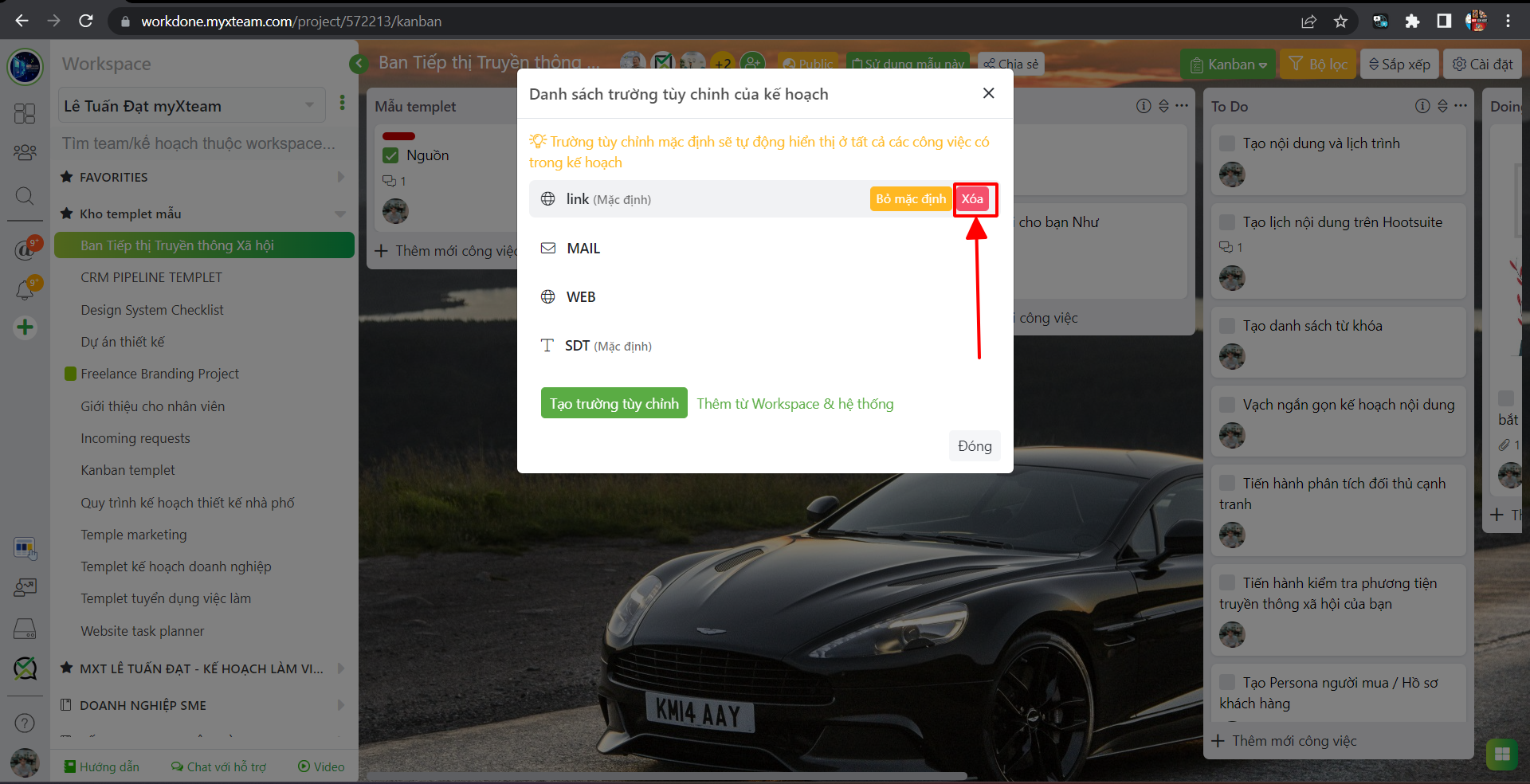
Xóa trường tùy chỉnh có 2 dạng, xóa trường thông tin được gán mặc định hoặc chưa gán mặc định vào các công việc
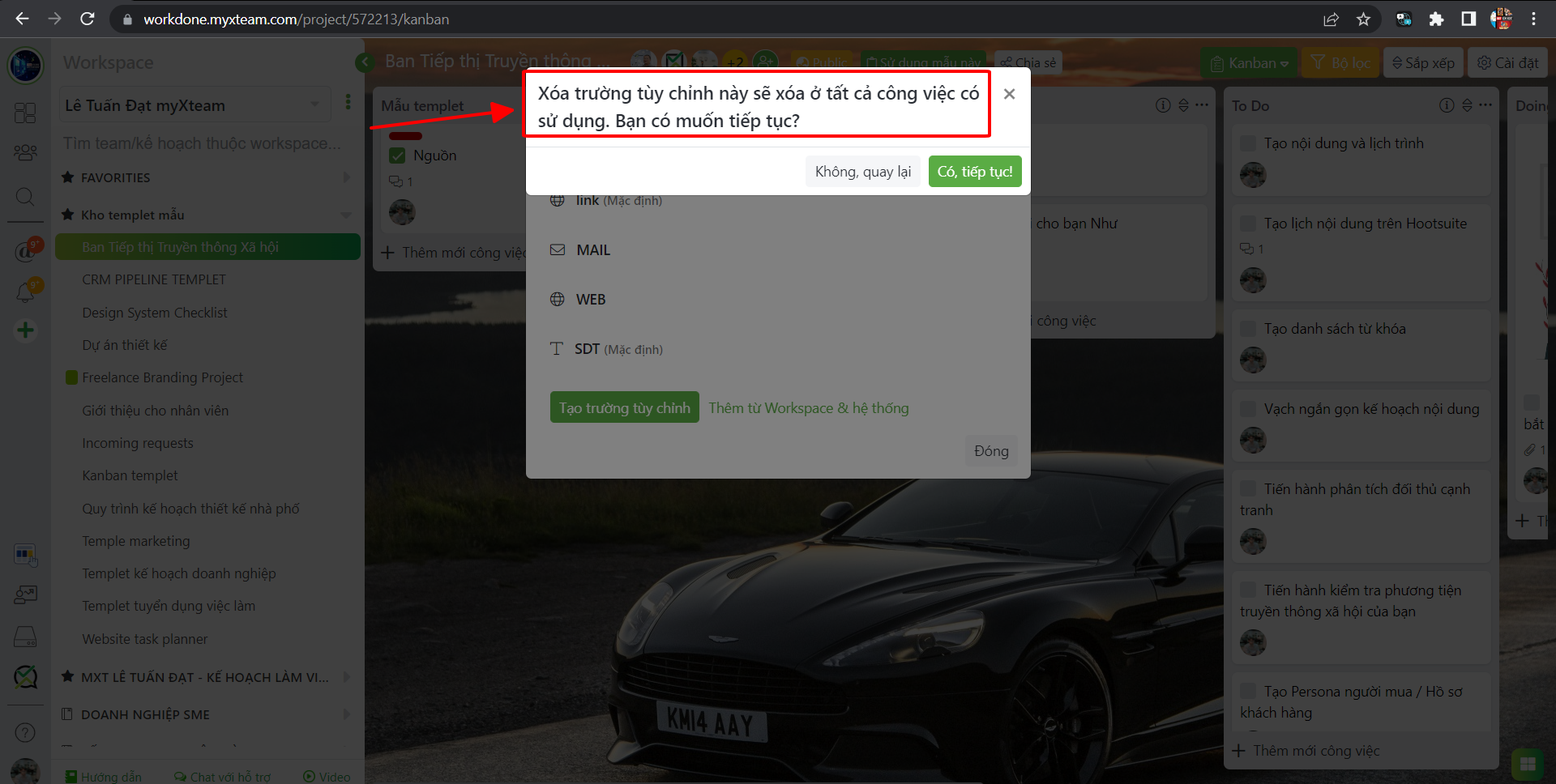
Khi xóa trường tùy chỉnh ra khỏi kế hoạch, toàn bộ trường tùy chỉnh có trong công việc được thêm vào từ trước hoặc được đặt làm mặc định sẽ bị xóa vĩnh viễn, không thể khôi phục lại được, bạn cần cân nhắc kỹ trước khi xóa trường tùy chỉnh nào đó ra khỏi kế hoạch
#### Chúc bạn thành công với myXteam